🧭 Navigation Reference
Map reading, compass use, GPS navigation, and CalTopo/SARTopo for SAR operations.
📱 ASAR CalTopo/SARTopo Guide
Quick reference guide for using CalTopo/SARTopo in the field with the ASAR Master map.
📄 View Original Cheat Sheet
Download/View PDF Cheat SheetGetting Started
Installation and Setup
- Install the App: Download from Google Play Store or Apple App Store
- Sign In: Use Google or Facebook authentication
- Important: Select SARTopo, not CalTopo
Loading the ASAR Master Map
- Click the menu button (three horizontal bars)
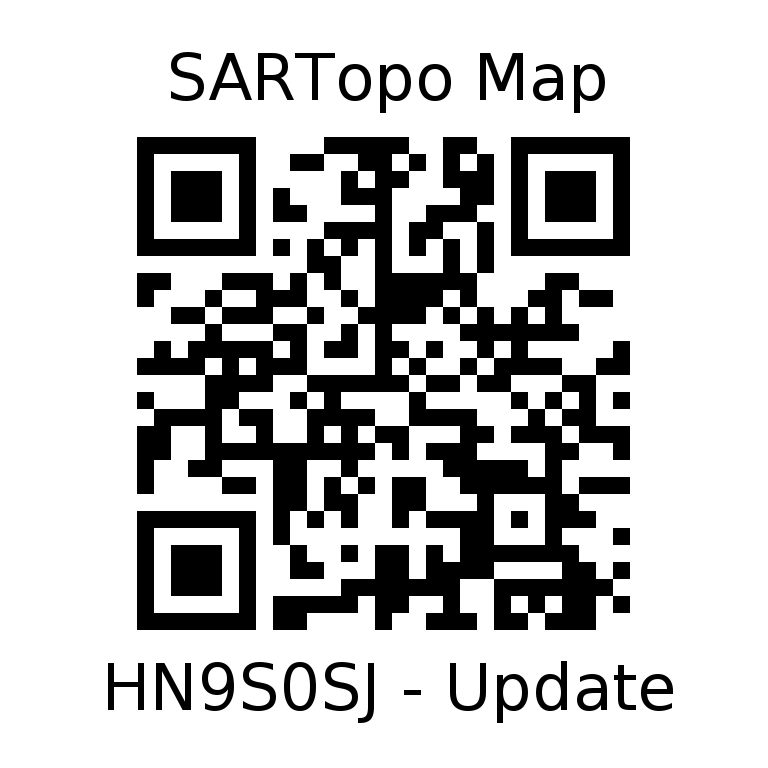
- Select Scan QR Code
- Scan the ASAR Master Map QR code: B4QA - Update
📌 Note: You don't have to load the ASAR map to use CalTopo features, but your tracks and markers won't be visible to other team members unless you're using the ASAR Master map.
Adding Markers
Create a Marker
- Long press on the map at the desired location
- Select Add Marker from the popup menu
Configure Marker Properties
- Color: Choose marker color for visibility
- Style: Select icon style (pin, flag, circle, etc.)
- Size: Adjust marker size
- Label: Add descriptive text
- Comments: Add additional information
Edit or Delete Markers
- Click on the marker you want to modify
- Select Edit to change properties
- Select Delete to remove the marker
Recording GPS Tracks
Start Recording a Track
- Enable GPS: Click the location icon to turn on GPS tracking
- Open Track Menu: Click the four dots menu button
- Start Recording: Select Record track
- Name Your Track: Enter a descriptive name (e.g., "Team 101")
- Choose Visibility:
- "This map" - Track saved locally for your use only
- "Account + This map" - Track visible on ASAR Master map for all team members
- Click Record Track to begin
⚠️ Important: For SAR operations, choose "Account + This map" so your track is visible to command and other team members on the ASAR Master map.
Managing Active Tracks
Edit, Show, or Finish a Track
- Click the track button at the bottom of the screen
- Your active track will be displayed with options:
Track Options
- Edit: Modify track properties (name, color, etc.)
- Show on Map: Toggle track visibility
- Finish: Stop recording and save the track
Track Information Displayed
- Distance covered
- Elevation gain/loss
- Time elapsed
- Current status (recording/paused)
Best Practices for SAR Operations
Before Heading Out
- ✓ Verify you're connected to the ASAR Master map
- ✓ Test GPS signal strength
- ✓ Ensure phone battery is fully charged
- ✓ Download offline maps for your search area
- ✓ Confirm track recording is set to "Account + This map"
During Operations
- ✓ Start track recording when beginning search
- ✓ Add markers for points of interest (clues, hazards, etc.)
- ✓ Use consistent naming conventions for markers
- ✓ Monitor battery level - bring backup power
- ✓ Periodically verify track is still recording
Marker Naming Conventions
| Type | Example Name | Usage |
|---|---|---|
| Clue | CLUE - Footprint | Evidence of subject's passage |
| Hazard | HAZARD - Cliff | Dangerous areas for team safety |
| POI | POI - Shelter | Points of interest |
| Search Area | SEARCHED - Grid A1 | Areas that have been covered |
| Team Position | TEAM 1 - Current | Current team location |
After the Mission
- ✓ Finish and save your track
- ✓ Review markers for accuracy
- ✓ Add any final notes or comments
- ✓ Ensure data is synced to ASAR Master map
- ✓ Report significant findings to command
Troubleshooting
GPS Not Working
- Check that location services are enabled on your device
- Ensure CalTopo has permission to access location
- Move to an area with better sky visibility
- Restart the app if GPS icon shows no signal
Track Not Appearing on ASAR Master
- Verify you selected "Account + This map" when starting the track
- Check that you're connected to the ASAR Master map (B4QA)
- Ensure you have internet/data connection for sync
- Try manually syncing by pulling down to refresh
Markers Not Saving
- Verify you have an active internet connection
- Check that you're logged into your account
- Ensure the ASAR Master map is loaded
- Try creating a test marker to verify functionality
Quick Reference Summary
| Action | Steps |
|---|---|
| Add Marker | Long press → Add Marker → Configure → OK |
| Start Track | GPS on → Four dots → Record → Name → Account + This map → Record |
| Finish Track | Track button → Finish |
| Edit Marker | Click marker → Edit → Modify → OK |
| Load ASAR Map | Menu → Scan QR Code → Scan B4QA code |
Additional Navigation Topics
📌 Additional Content Coming Soon
This section will be expanded to include:
- Map reading and interpretation
- Topographic map symbols and features
- Compass use and bearings
- UTM and Lat/Long coordinates
- Route planning and navigation
- Night navigation techniques
- Navigation in poor visibility
- Grid references and position reporting
Additional Resources
- SARTopo Help: training.sartopo.com
- ASAR Website: www.arrowsmithsar.ca
- Contact SAR Manager: For ASAR Master map access issues